# Sensori User Documentation
## Getting started with Sensori Capture
Sensori Capture offers a complete solution for the recording of comprehensive on-site imagery, automated creation of 3D environment models, and easy communication using that data.
This document is a guide to the capturing of data, submission for processing, and viewing of the final models.
If you have any queries, please get in touch using our [contact form](https://sensori.systems/contact).
###
###
# Equipment
### Choice of camera
Using a 360 camera will provide a good balance of scan quality and ease of use. We support the use of stitched 360 panoramic video (equirectangular), or unstitched ( .insv or mp4) files from Insta360, Ricoh Theta, and Kandao cameras. Supported 360 cameras include the Insta360 OneRS, X2, X4, X5, Ricoh Theta X or Z1, and Kandao Qoocam 3 ultra.
Alternatively, you may use other cameras that support the capture of high bitrate video with a fisheye lens. The Z Cam E2-M4 and E2 with the Astrhori or Meike 6.5mm f/2 fisheye lens (MFT mount) are good choices.
360 Camera Settings
To get the best results with Insta360 cameras, we recommend using the highest resolution video setting at 24/30 frames per second. For the X5 use the 8k30 video setting. For the X6, use 8k30 with low jitter mode enabled and high bitrate recording enabled from the settings menu.
For Ricoh Theta X1 or Z, the maximum resolution video mode is the best choice, but you may also use a lower framerate timelapse mode to save data size.
For the Kandao Qoocam 3 Ultra, the 6 fps timelapse mode is the best choice.
Pre-stitched equirectangular video at 24/30 frames per second is also supported, but will generally result in lower accuracy than using supported unstitched data.
### Smartphone App
Sensori provides an Android companion app for Insta360 cameras. This app is available on request and can be used to approximately georeference your captures and allows for easy submission of data for processing.
### Monopod
We recommend using a monopod or selfie stick to keep the 360 camera overhead for better visibility. Longer monopods (3m) are suggested for capturing ceiling voids or similar difficult to reach areas. Helmet mounted cameras can also be used, but will degrade accuracy and make it difficult to bring the camera close to any targets that are used.
### Extra lighting
Sensori capture requires good illumination to be able to generate high quality geometry. When working at night with no other lighting, or in dark environments such as ceiling voids, a light should be fitted to the camera. The [Bushman Halo light](https://bushman-panoramic.com/products/halo-360-light?sca_ref=11989676.vkGPjiyLY1ZxgJ) is a good choice.
### Scanning targets
Sensori capture uses a standard set of targets for defining scale and registering against a control network. They are available to order from us, but you may also print your own.
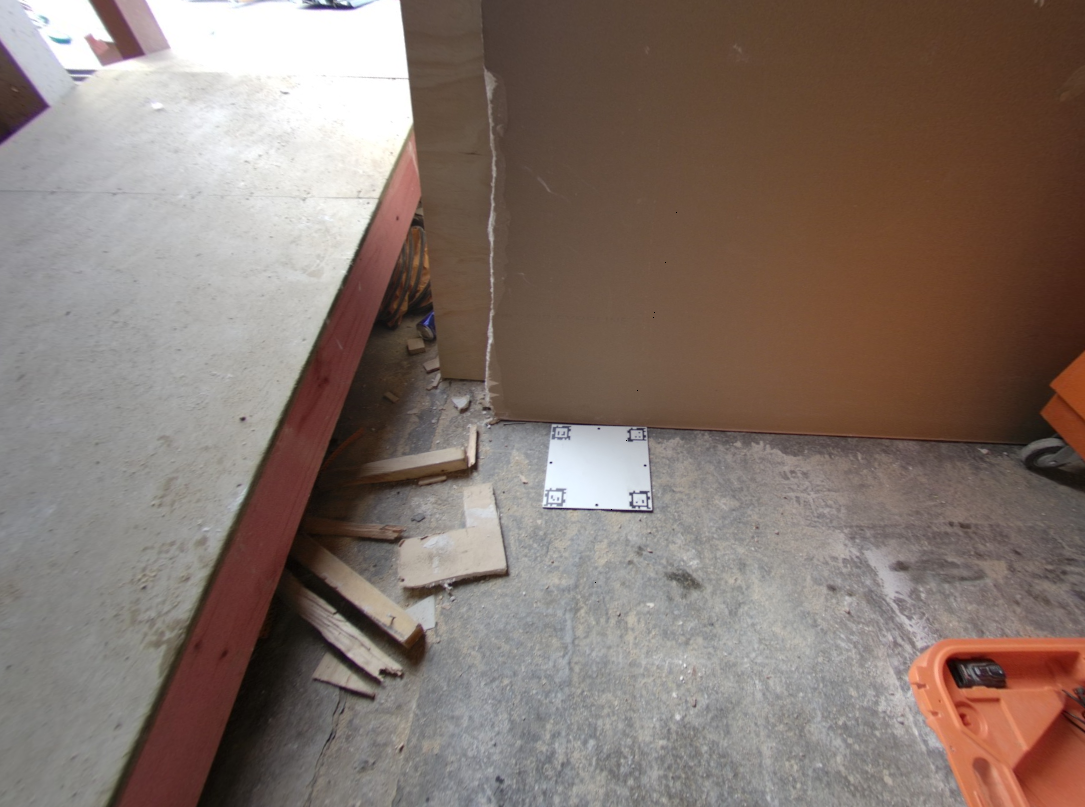
Scale plate designs for printing on an A4 printer can be downloaded [here](https://sensori-public.s3.ap-southeast-2.amazonaws.com/user_resources/scale_plates_a4.pdf). These are sufficient for capturing using a 360 camera or smartphone. These should be printed at the original print size of the file. The distance between the centres of the target patterns is exactly 200mm and must be printed accurately. **Check the distance between target centres before use.** We recommend printing these on aluminium composite or other rigid material to reduce the risk of movement during outdoor captures.
Control point markers for use with survey points can be downloaded [here](https://sensori-public.s3.ap-southeast-2.amazonaws.com/user_resources/control_point_targets.zip). We recommend printing these on 3mm foam. Our standard size for these is 12cm across, but they may be used at any print size. The centre can be cut out as shown on the next page.
The origin plate for use with normal stills or video cameras is available to download [here](https://sensori-public.s3.ap-southeast-2.amazonaws.com/user_resources/origin_scale_pair_plates.zip). This should not be used with supported 360 cameras and smartphones, and must be printed on an A3 or larger printer.
# Using Targets
When capturing data of a site there must be known scale targets or survey point targets placed within the scene. These targets are used to set an accurate scale, reduce drift in the generated model, and allow for alignment of the model against a known coordinate system. We provide a set of scale plates which should always be used, an optional origin plate to define a local coordinate system, and a set of control point markers which can be used when three or more control points are available.
We recommend always using surveyed control points when attempting larger captures of over 1000 square metres.
**Note:** With all markers it is vital they do not move during a scan. They must be stationary to prevent geometric errors in the final model. Do not collect any of the targets until capture of the scan has finished and place them in locations where they will not be moved by accident.
#### Scale plates - easy use
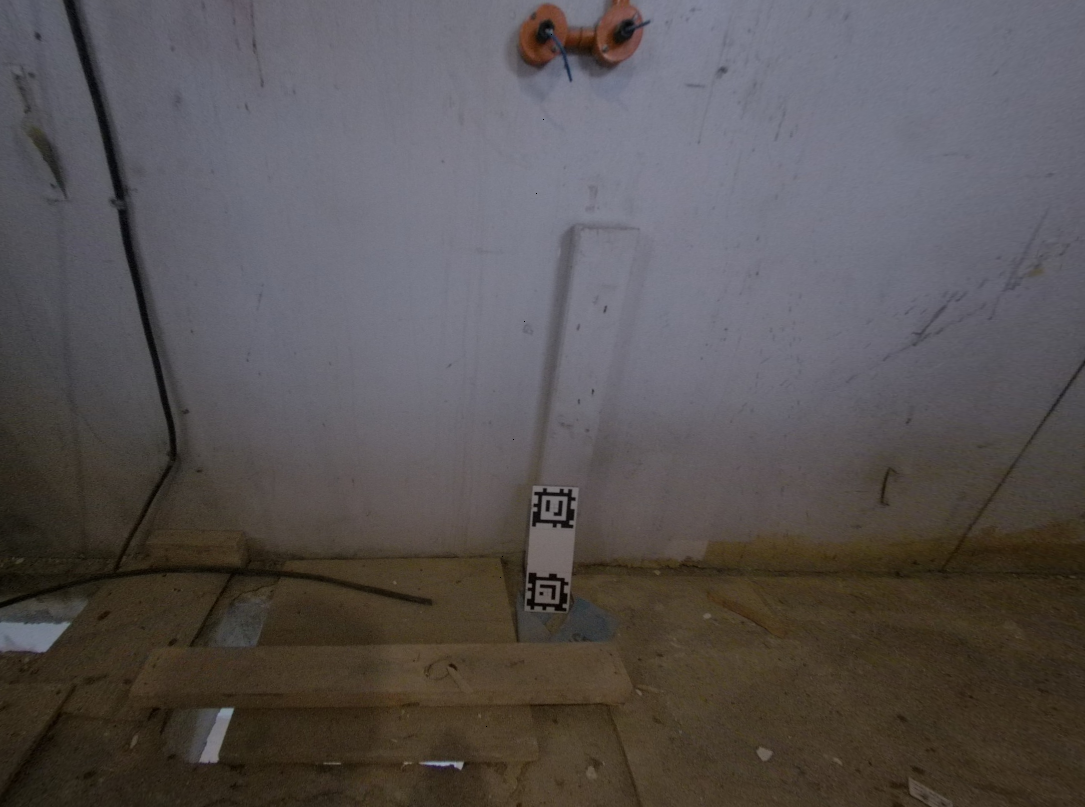
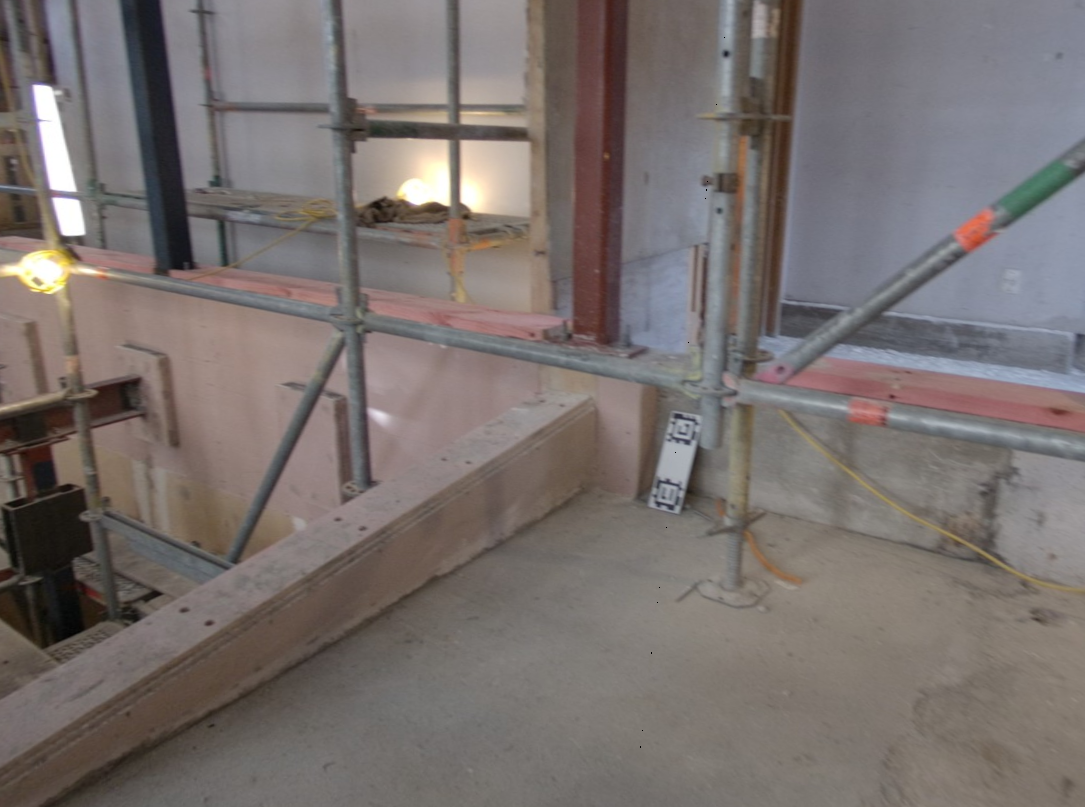
Our standard set of eight unique scale plates should be placed as evenly as possible around the site. We suggest trying to ensure the distances between targets are no more than 20 metres to minimise accumulation of drift in the scan. They may be placed in any convenient location. Leaning them against a wall can help maximise visibility.
If you are using the optional square origin plate, it can be placed flat on a level surface to define an origin point for the scan and vertical direction when not using a supported 360 camera.
For improved accuracy in areas with low visual detail and around repeating structures such as stairwells you may also use the control point targets described below, but without surveyed ground truth positions . These should be placed in locations with good visibility as shown below. It is important that these markers be secured if you are in a windy outdoor environment to prevent them moving during the capture.
If you are using an Insta360 camera with the Sensori app, Insta360 app, or GPS remote, the captured geometry will be georeferenced using approximate GPS data.
#### Control point targets - advanced use
These markers allow the captured geometry to be aligned with surveyed control points, providing accurate geo-referencing and drift correction. They should be placed around existing retro markers or bolts in the scene with known accurate positions. When uploading the captured video data for a scan, you will also need to provide a csv file listing the coordinates and target ID for each control point marker (described on the [control point format page](/capturing-and-processing/control-point-csv-format)). We recommend leaving these markers in place if possible so that successive scans can be captured without updating the marker coordinates.
#### Notes on target placement:
* You might need to secure the targets to the ground or other surface to prevent them moving in the wind for outdoor captures.
* Using double sided tape is useful when fixing control point markers to walls, though if left too long this may rip off paint, so take care.
* If you split a scan into multiple video recordings, make sure the targets do not move between each of the recordings. Otherwise each recording should be uploaded as a separate scan.
# Capturing a Scan
Site captures are organised according to a hierarchy of projects, scenes, and scans. For example, a project might represent the entirety of a building. Each scene within that project might represent one floor within that building. Each scan provides a single time-stamped capture of that scene on a particular day.
When capturing data of a scene we refer to this as "scanning" the scene. A scan is one continuous walk through the entire scene. Sensori Capture is able to stitch together multiple separate recordings, but only if they contain significant amounts of overlap with each other.
#### Order of operations
1. Ensure there is a memory card and charged battery in the camera before going to the site
2. Locate surveyed control points if those will be used
3. Place control point targets over surveyed control points and note the target ID used for each point.
4. Distribute scale plates around the scene. They do not need to be horizontal, so leaning them against a wall can improve visibility.
5. If not using a supported 360 camera or the mobile capture app, place the origin plate horizontally at a desired 0,0,0 position.
6. Turn the camera on
7. Optionally connect the Sensori app for approximate georeferencing if using an Insta360 camera.
8. Set the camera to the highest resolution video mode if not using the app.
9. Start recording.
10. Slowly walk through and capture the scene, making sure to regularly turn around a full 360 degrees on the spot. This is still important when using a 360 camera.
11. Take care to record each target more than once and try to get within less than 1 metre of the target. Turning the camera around in front of the scale plates will help with calibration for improved accuracy.
12. Walk back to where you started if possible and try to revisit locations to improve loop closure.
13. Stop recording
14. Collect targets as required
15. Upload videos from camera and control points csv file if used to the Sensori website or via the app.
#### Walking the site
When capturing there are a few guidelines to consider:
* Don't move faster than a slow walk, about a third your usual pace
* Don't swing the camera faster than you would a cup of liquid
* Each time you pass a scale plate, bring the camera close to it and wave the camera around slowly while turning it so both lenses face the target. This is not critical, but will improve accuracy.
* When using a 360 camera, holding it slightly overhead on a monopod will give the best results. Using a helmet mount is not recommended, particularly outdoors because it will reduce visibility of the ground and make it difficult to bring the camera close to targets.
* Try to "weave" through the site, crossing back over spaces you have walked through
* Occasionally turn around a full 360 degrees on the spot to ensure you capture in all directions. **This is very important to ensure your capture is fully connected and has low drift error.** You should still do this when using a 360 camera.
* If a space becomes narrow, such as a tight corridor or doorway, then slow your pace further
* If there are areas of interest (pipes, cables, etc) then get closer to these areas and slowly move the camera around them to capture more detail
* Any area that you don't walk through will not be reconstructed well, so be sure to walk throughout the whole scene that you want to capture. It doesn't matter where you start, but it's a very good idea to walk back to where you started before you end the capture, and try to visit each area more than once
#### Examples showing good capture technique in a small outdoor area
Starting recording using the Sensori Android app and an Insta360 X5 camera. You can also start recording using the normal camera controls:
{% embed url="" %}
Occasionally turn around to help with calibration:
{% embed url="" %}
Wave the camera slowly in front of the scale plates while turning for improved accuracy:
{% embed url="" %}
Example walking path while capturing:
{% embed url="" %}
When capturing ceiling voids, manholes, or other tight spaces, it is important to move the camera slowly to maintain tracking and obtain high quality geometry:
{% embed url="" %}
The resulting processed scan inside the Sensori viewer:
Because the Sensori app was used, the scan will be approximately georeferenced. Here is the generated geotiff ortho image over an aerial imagery base layer:
# Example Captures
### Example 1: Plant room renovation
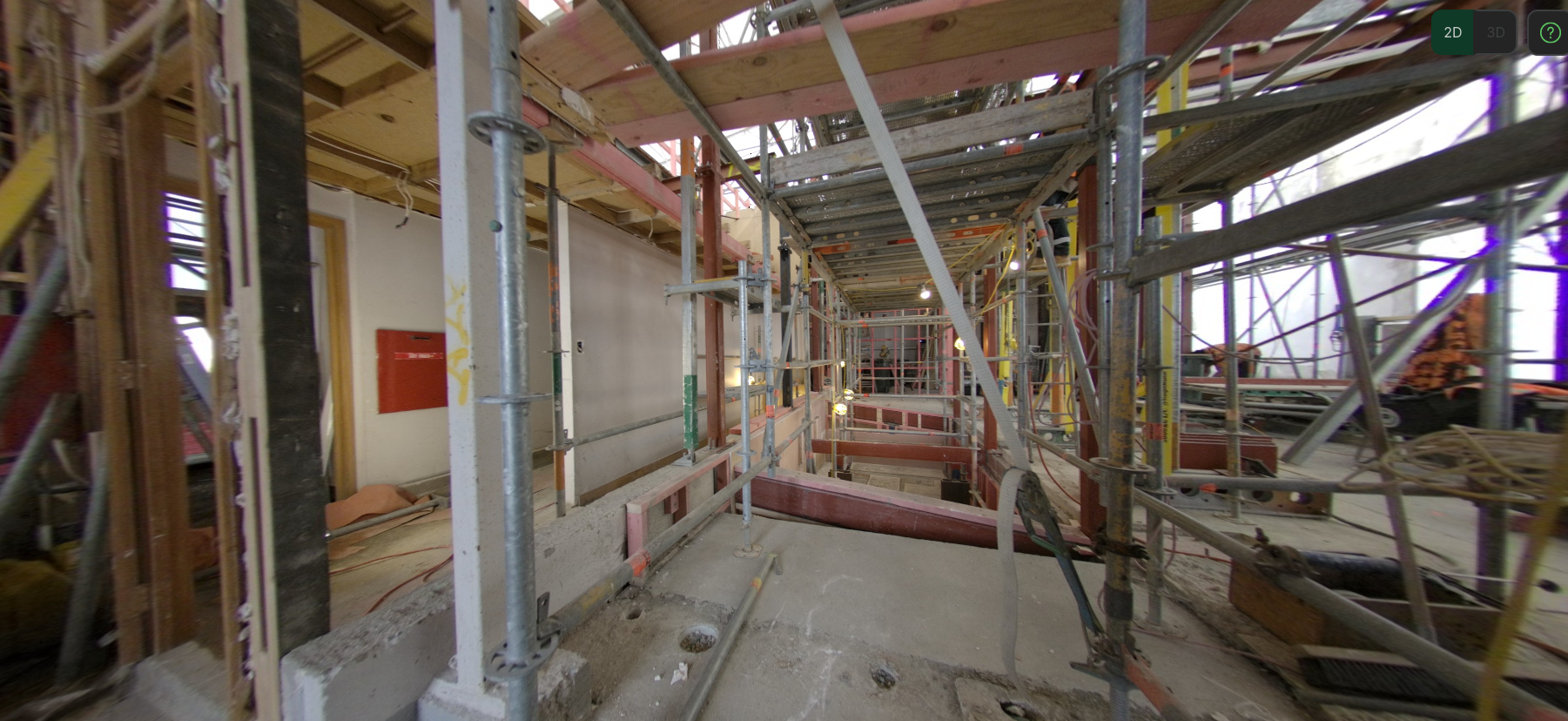
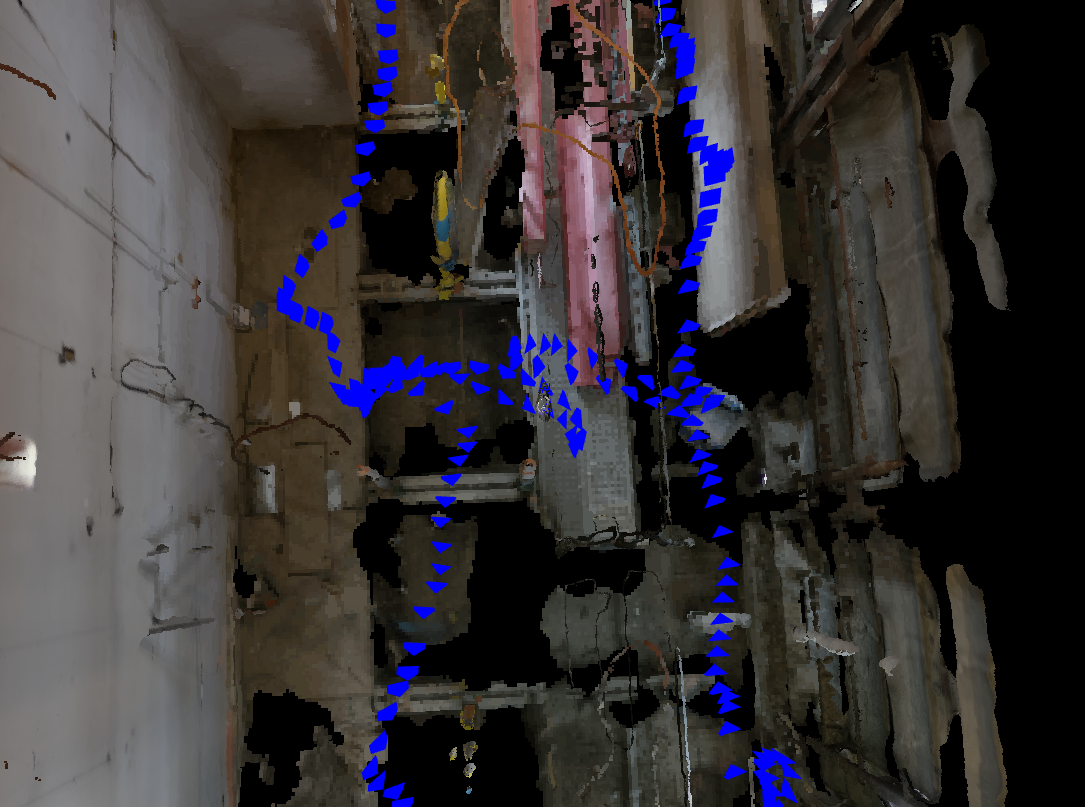
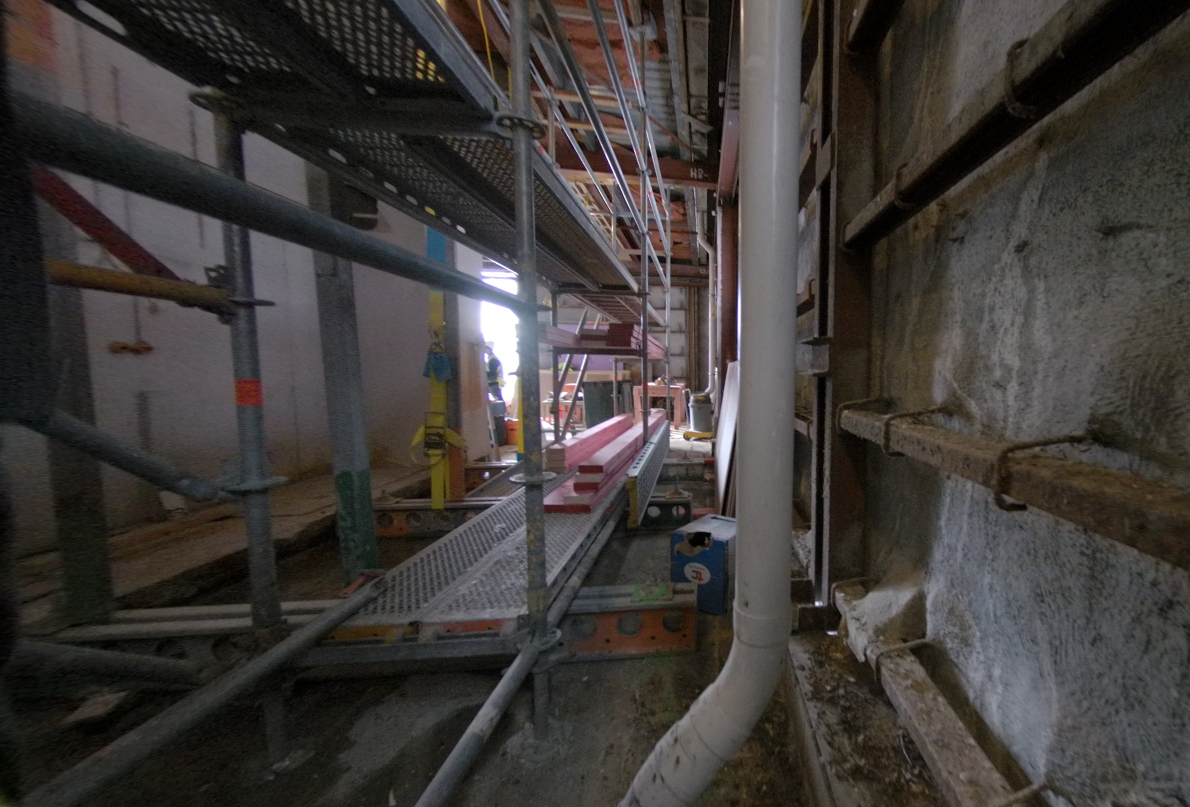
In this case, we have a cluttered environment with scaffolding and other structures limiting visibility.
The origin plate and scale plates were placed in locations where they would be as visible as possible, but not at risk of being moved by other workers on site.
The camera operator walked slowly around the scaffolding, making sure to visit all necessary areas, and getting close to all the targets. Note the loop closure where possible.
Extra care was taken to ensure full connectivity in this area due to the limited space and low lighting.
### Example 2: Office renovation
In this example we have a 700 square metre office renovation captured after interior demolition. This situation is easier due to the greater visibility and the entire floor was captured in around 10 minutes.
While walking around the site, the camera operator was careful to regularly turn around a full 360 degrees to ensure good coverage in all directions. You can see that as the small loops in the camera track, some of which have been circled in red here:
Care was taken to ensure loop closure through this gap where walking was not possible by turning the camera around on both sides of the gap.
### Example 3: Uncovered car park
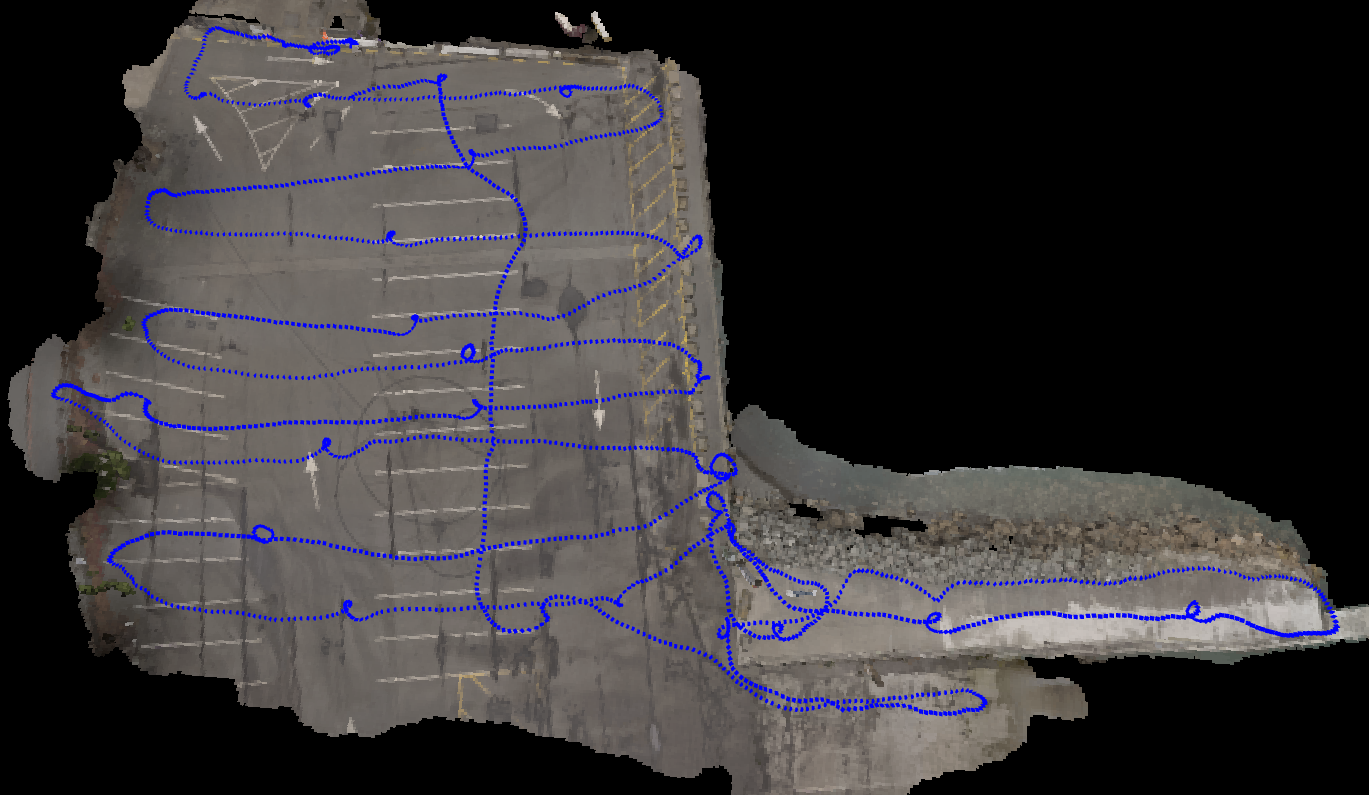
For large open areas such as this 3000 square metre uncovered car park, we recommend mounting the camera facing downwards onto a 2 metre monopod. This provides better visibility of the ground than when hand-holding the camera.
When walking around the site, the camera operator followed a regular side to side pattern as shown here. After traversing the site, they walked back through the middle to ensure strong loop closure. Note the full 360 degree turns used in the middle of the space to help with that closure. For reference, this capture took around 11 minutes.
### Example 4: Pipe upgrade
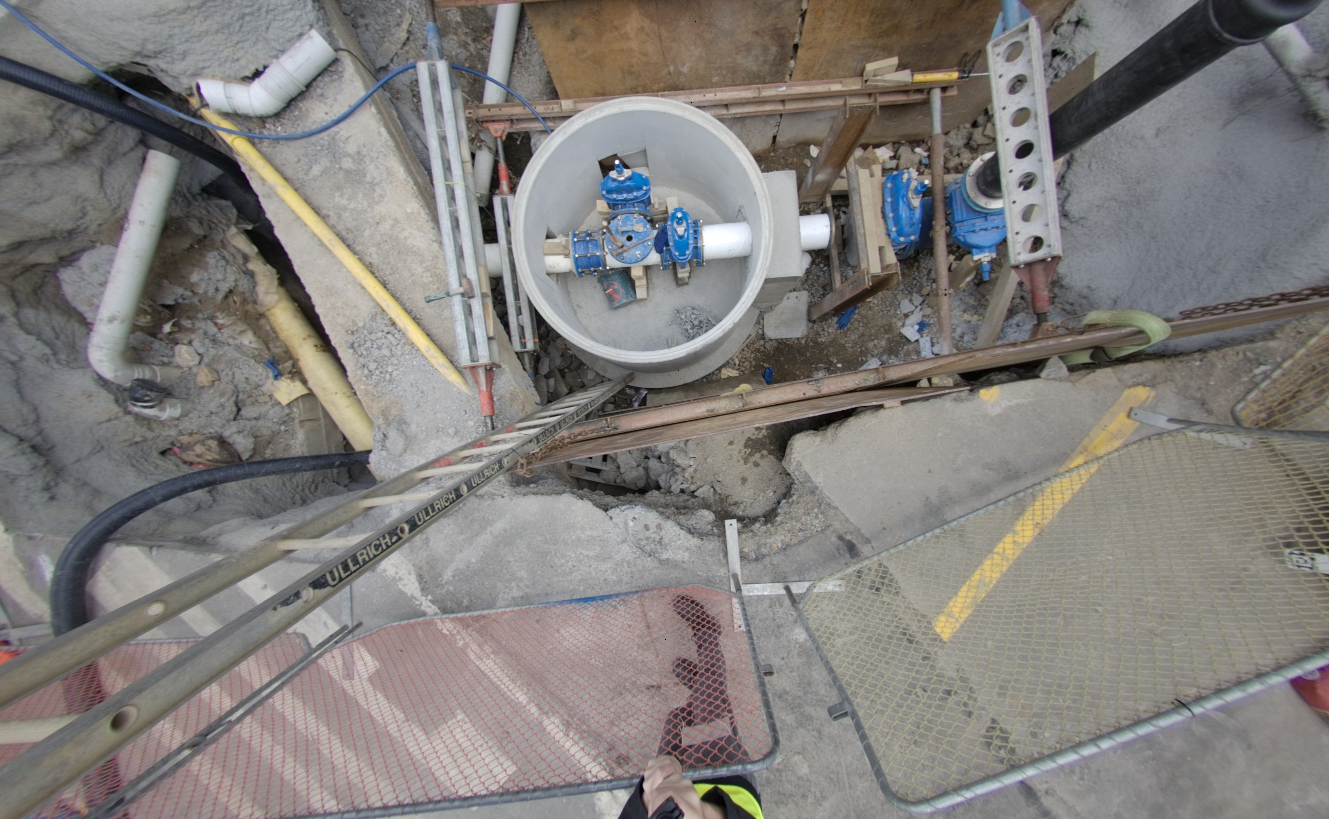
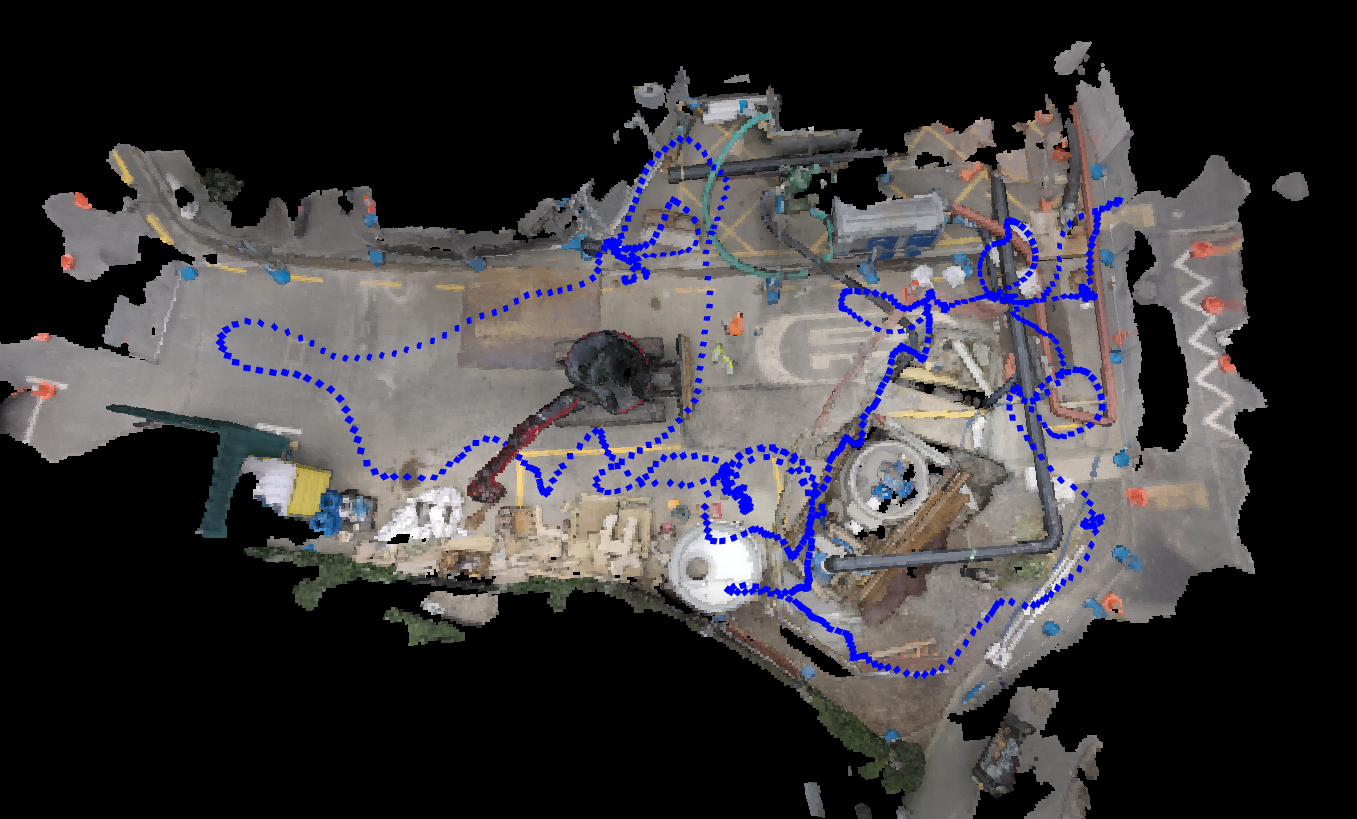
Here is another example of mounting the camera to a monopod. In this case, the monopod was used to provide better visibility while maintaining a safe distance from the excavated pipe.
Origin and scale plates were placed in visible locations with low risk of being stepped on.
A full circuit around the excavation and surrounding environment was performed to ensure plenty of image coverage of important details.
# Other Capture Considerations
**Environmental and weather factors**
Depending upon the environment you’re capturing and how the weather is there are a few key notes:
* It is not recommended to capture in the rain as water droplets on the lens will degrade performance.
* Wet and shiny surfaces won’t reconstruct well. Be prepared for mirrored areas, pools of standing water, and glassy objects to be deformed in the final model
* Clean featureless areas, such as painted walls, may also be deformed or not get reconstructed in the final model.
* Dense vegetation, such as grasses and tree branches, will be poorly reconstructed in the model if there is much wind
* When capturing dark areas, better results will be obtained by fitting a wide beam or 360 LED light to the camera.
Large areas of dark asphalt or dark membrane roof surfaces can significantly increase the drift error in the generated model. Adding extra control point markers will help maintain accuracy in these situations:
Finished office environments and cleanly painted interior walls will result in low accuracy or deformed geometry. Photogrammetry is not recommended if a high quality point cloud is needed in this type of environment:
# Uploading Data
After completing your video capture, you will need to upload the data to the Sensori website for automated processing into a 3D model.
Register for an account on the [Sensori website](https://app.sensori.systems) if you don’t already have one. Your account will need to be activated for data processing, or you will need to be added to an existing project before you can proceed.
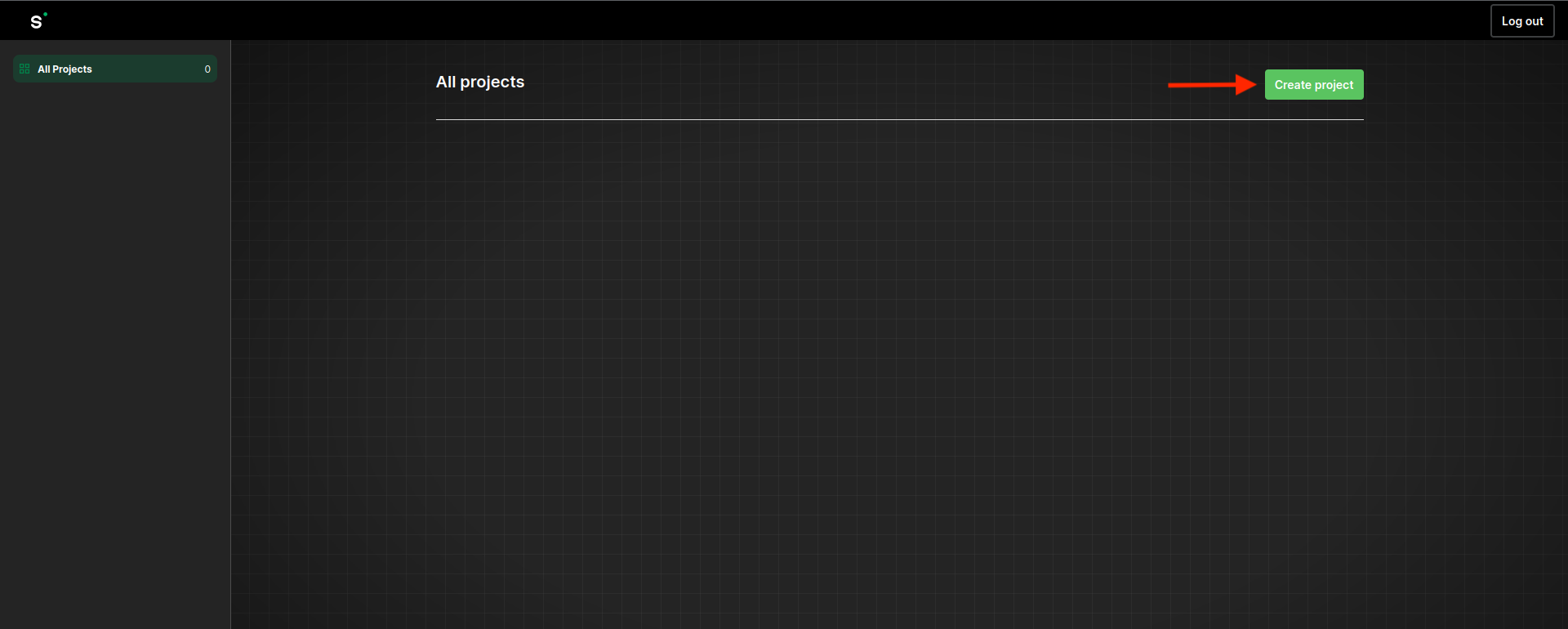
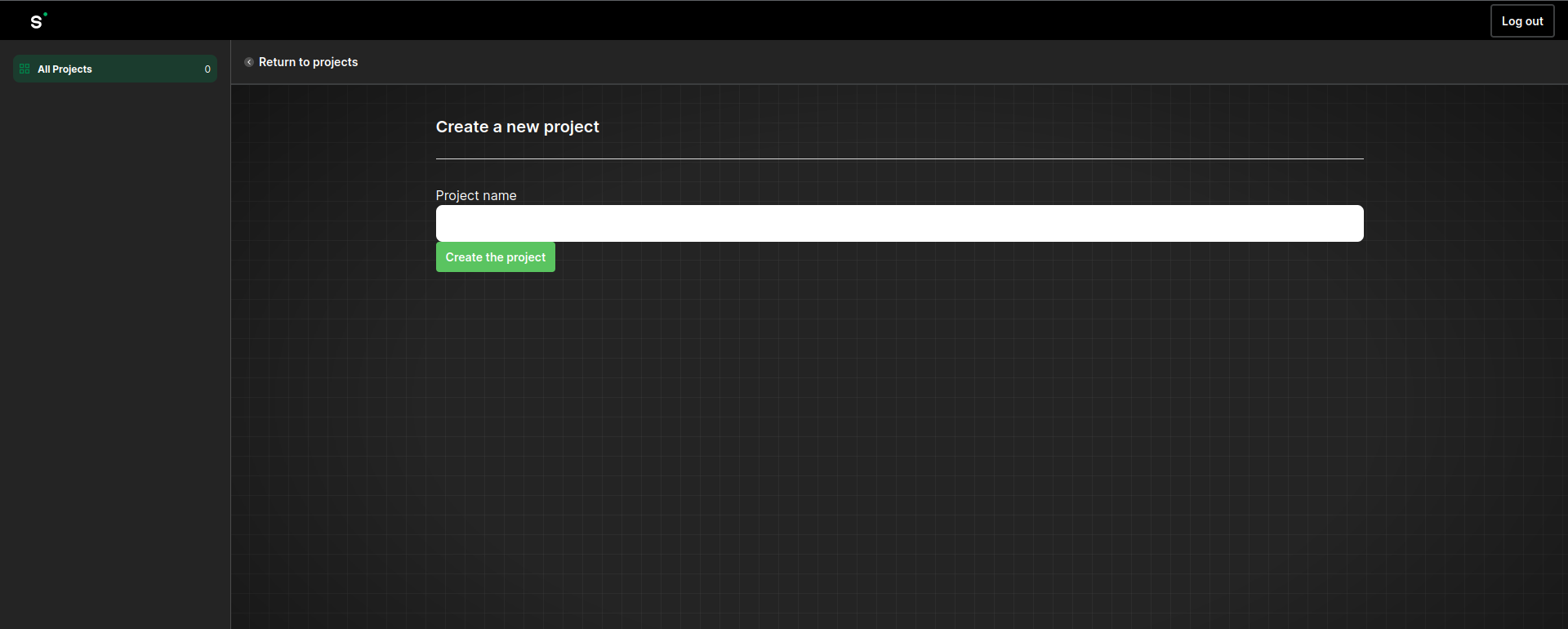
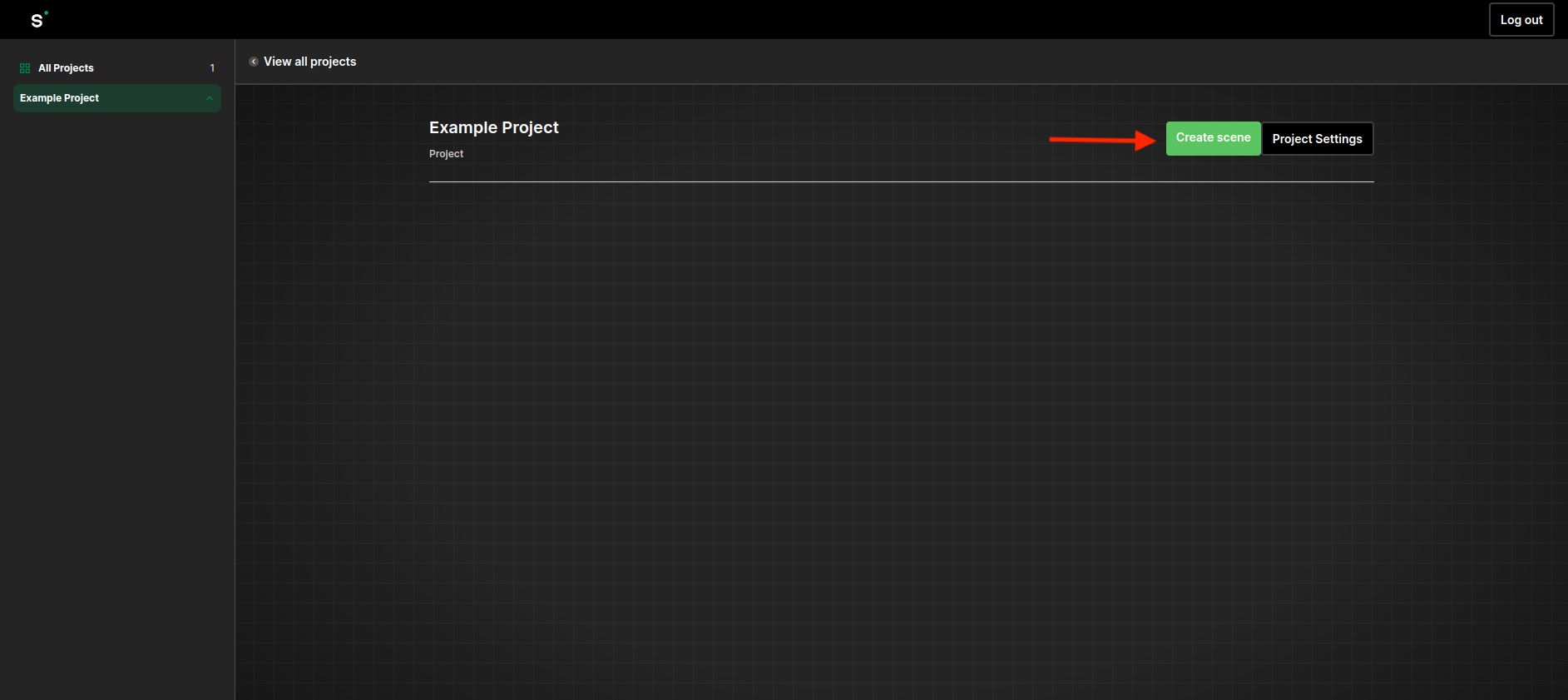
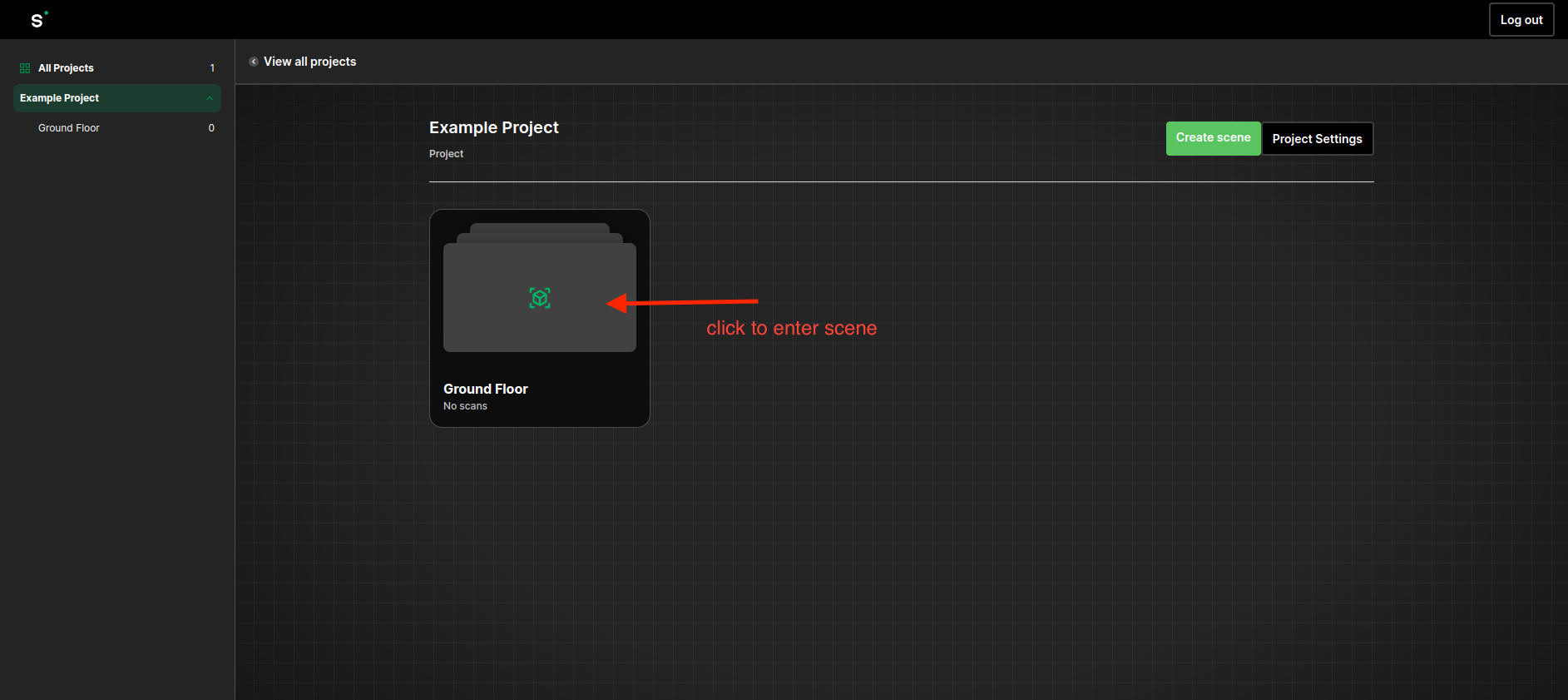
Sensori captures are organised in a hierarchy of projects, scenes, and scans. Create the project and scene hierarchy.
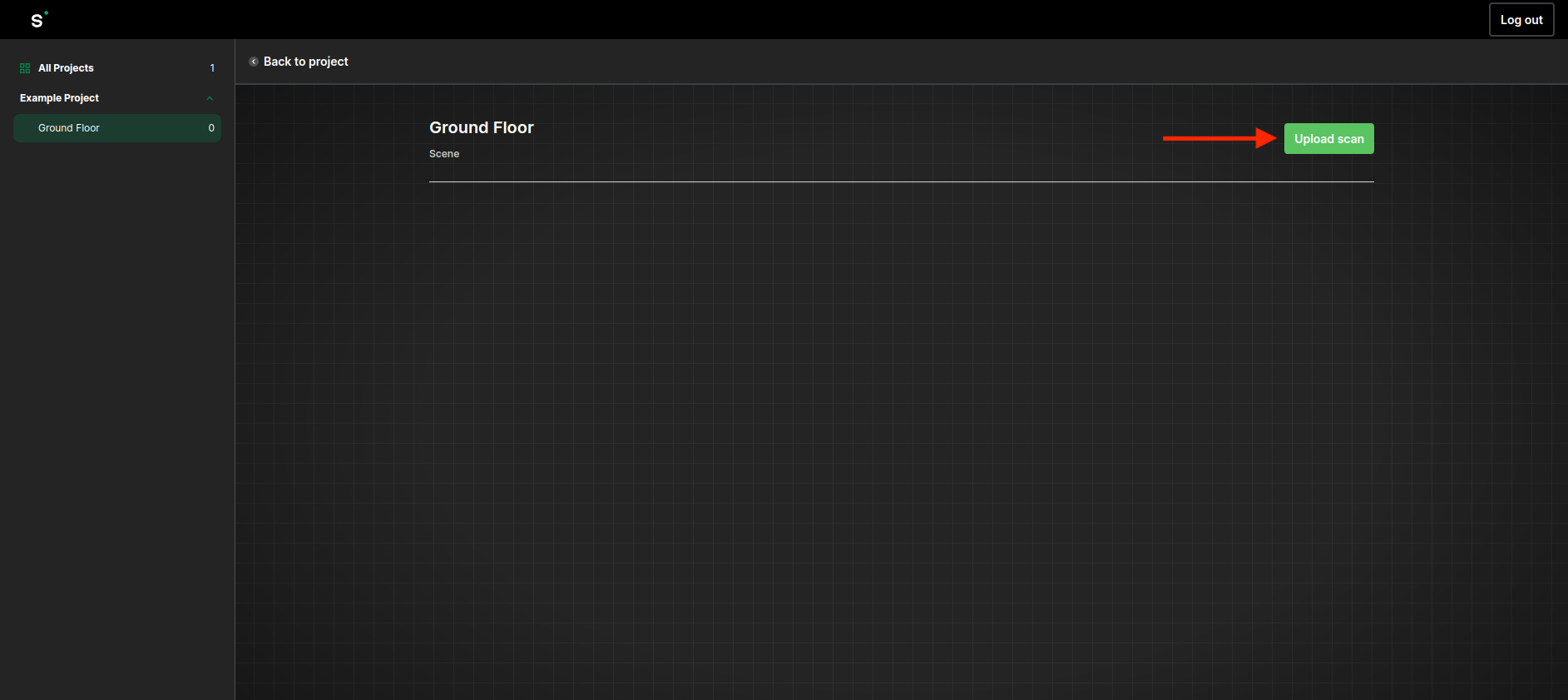
Create a new scan within the scene.
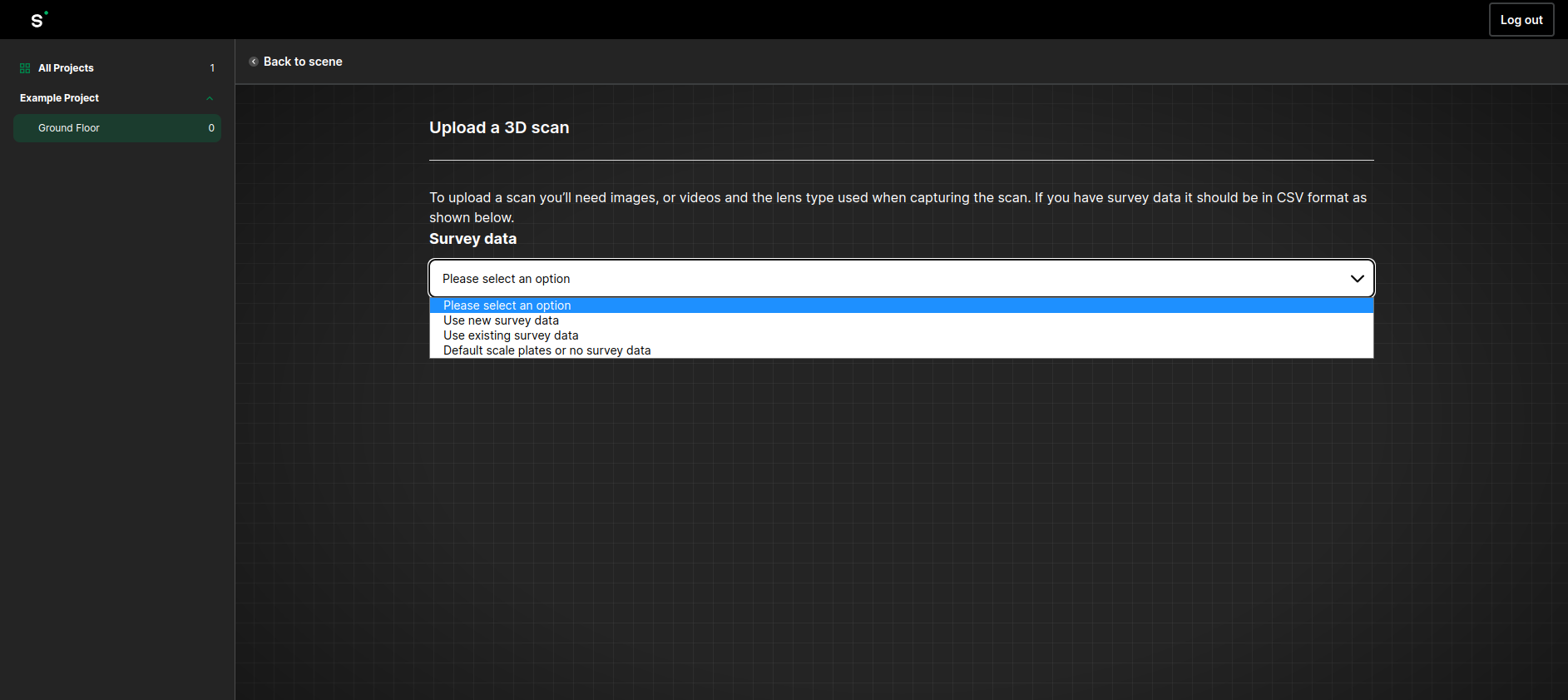
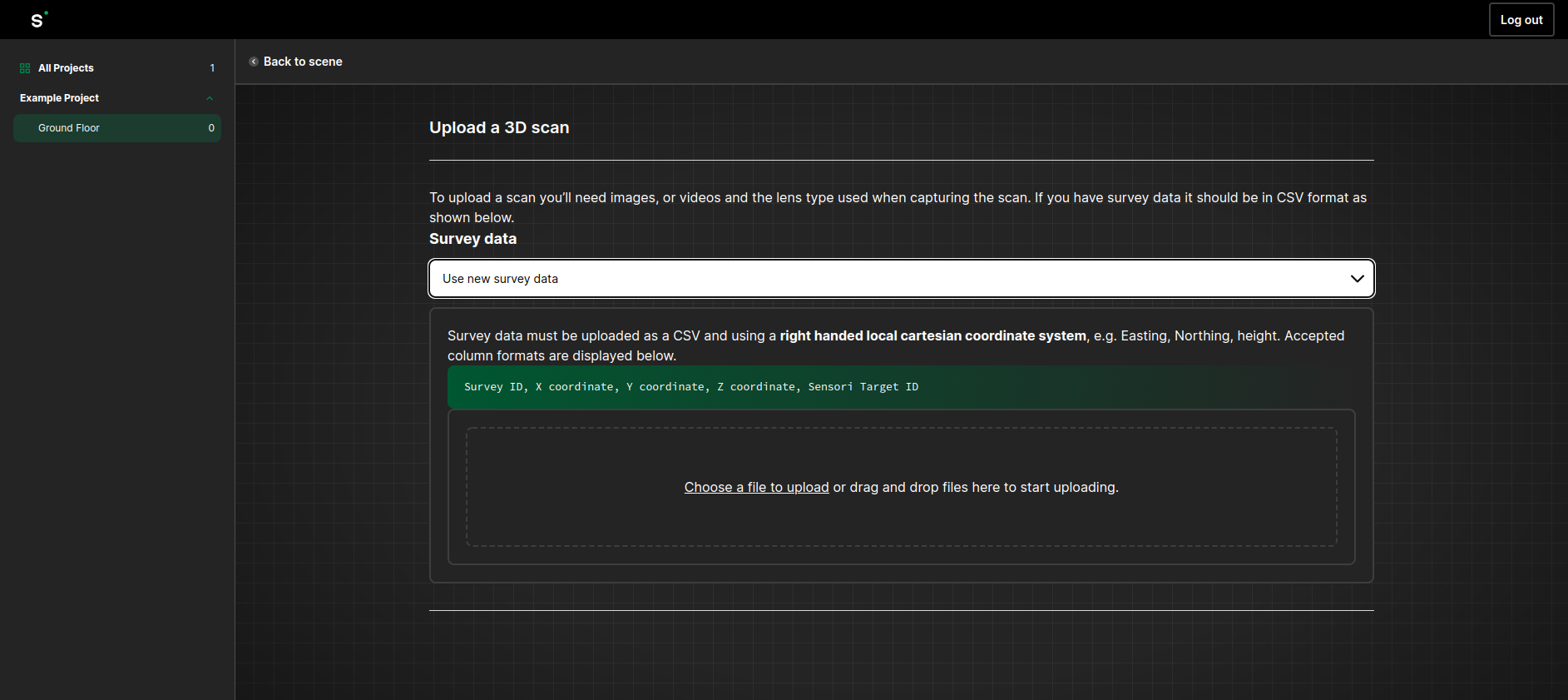
Choose the appropriate survey data option depending on whether you used the origin and scale plates, or surveyed control points.
Upload the csv file of control point coordinates if control points were used. See the section on the expected csv format for more information.
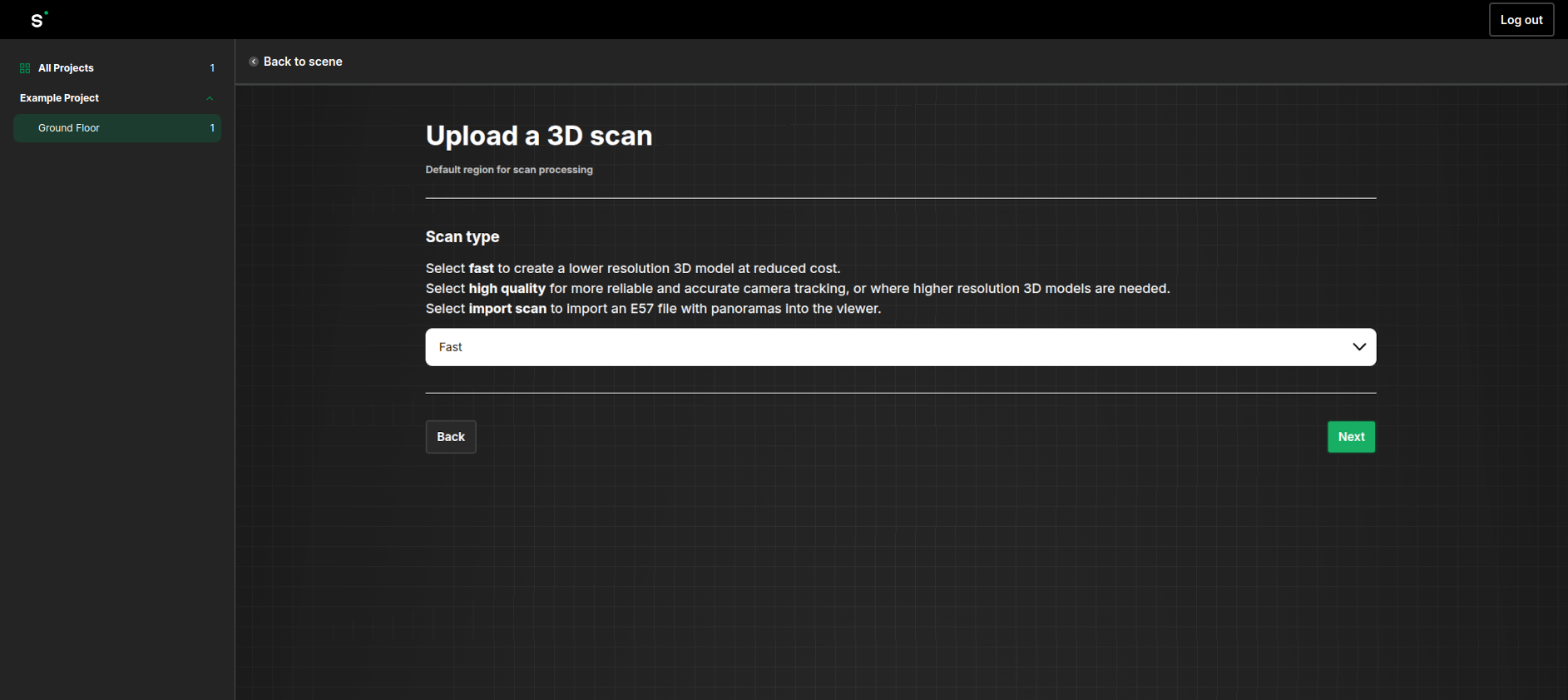
Select **Fast** or **High Quality** for the scan type depending on your needs. The fast option provides a lower resolution 3D model and is most suitable if you only need panoramic images located on a floor map. The high quality option should be chosen if detailed geometry is needed, and is charged at a higher rate than the fast option.
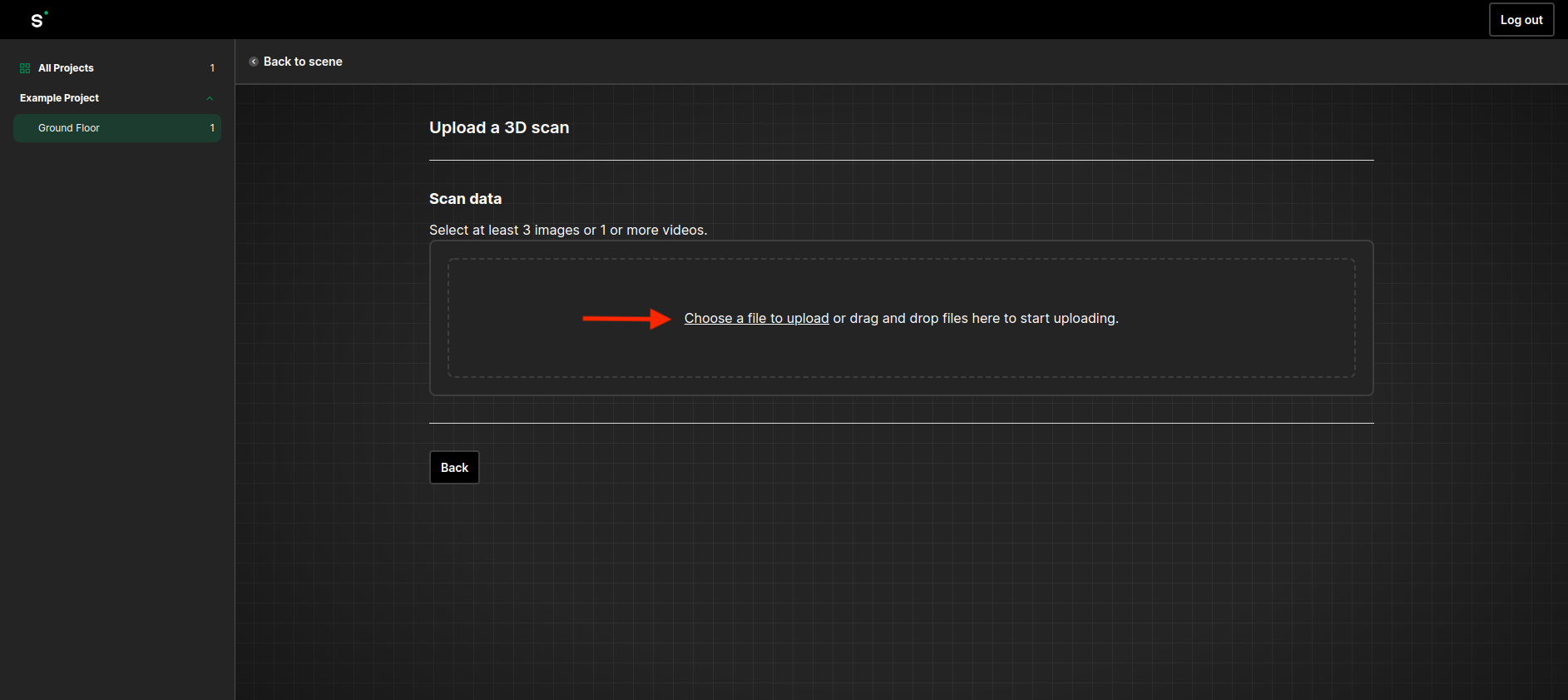
Upload the video files from the camera. **All videos or images uploaded together must be part of the same continuous capture.** Do not upload separate captures with different target locations to be processed in the the same scan.
If you are using an Insta360 camera, you should upload one or more VID\_\*.insv files. Do not upload the LRV\_\*.insv preview files.
For the Kandao Qoocam, you should upload both the Q360\*.MP4 files and the Q360\*.kvar metadata files.
After uploading has completed, you will have the option to wait for a count of the number of images to be processed so that you can get an indication of the cost before starting processing. You do not need to wait for this and can click next to start the processing.
Processing of the scan will take approximately 1 hour for every minute of recording time, so this is likely to be anywhere from a few hours to 2 days.
# Control Point CSV Format
An example of the expected csv format for the control point survey data can be seen here. A right handed coordinate system should be used with units of metres:
A minimum of 3 control points are required, otherwise they will be ignored. Using more than 3 is strongly recommended.
# Introduction
After your capture has been processed into a 3D model, it will become available in the Sensori Viewer. The viewer is accessible via a web browser and will generally provide a good viewing experience on recent laptops, desktops, or high end smartphones. Both the processed 3D model and all the embedded images used to create that model are easily accessible. Alternatively, the data can be downloaded in standard file formats for use in external tools.
The level of detail that can be displayed will depend on the graphics performance of your device. If the graphics performance is too low then the 3D geometry will appear blocky and low resolution. However, you will still be able to access the embedded images at full resolution.
Windows laptops with dual graphics sometimes default to using the low power integrated graphics for web browsers. If you experience blocky graphics or slow performance, try forcing high performance mode with the following:
Go to **Settings → System → Display → Graphics**.
Click your browser in the list, or add it via **Browse**.
Select **Options → High performance**, save, and restart your browser.
# Navigation
When you load a scan in the Sensori Viewer, it will start in the 3D view at the centre of the scan. It might take a few seconds for the geometry to load in full resolution.
Scroll with your mouse to zoom out.
Click on something of interest within the scan. That will set the centre of rotation for the viewer. Drag left and right to orbit the view around that centre point. Middle button drag or shift+drag to move the view sideways without rotating. You can also use the WASD keys for game style navigation.
Shift+click on something of interest to jump to the nearest image. You can also use the 2D/3D button at the top right, but that will provide less control over which image gets selected. On a smartphone, tapping with two fingers will have the same effect.
Use mouse scroll and drag to pan the image and zoom in and out. Press left or right arrow keys to step back and forward 1 image, or up and down to step by 20 images. If you used the recommended z-cam kit for capture, the images will cover 180 degrees, and will fade out if you turn backwards. If you use a 360 camera, the images will be full spheres.
Switch back to 3D view by shift+clicking again, or use the 2D/3D button. Press '1' on your keyboard to show the camera path. This can help with finding the most useful image.
When shift+clicking to jump to an image, the viewer will try to avoid jumping through walls to get to an image location. When navigating tight spaces with lots of obstructing geometry, it helps to get as close as possible to your desired image location before shift+clicking.
# Downloading Data
The processed 3D data and imagery is available to download from the viewer in a variety of formats. To access the downloadable data you will need to have been added as a member of the project.
Click the download button in the viewer to select from a list of downloadable data 
#### E57 point cloud
Unstructured point clouds are available in two resolution levels. Both versions are aligned to the control point coordinate system when available and include colours and surface normals. The high resolution cloud also includes an optimised subset of the images available within the viewer.
#### GLB mesh
The GLB (binary form of GLTF) mesh provides much lower resolution geometry than the point cloud, but provides a much smaller download option for basic modelling and viewing.
#### Ortho images
Floor and ceiling ortho images and a DSM are auto generated using the lowest and highest surfaces within the scan. These are available in geotiff format for loading into GIS software.
#### Volumetric data pack
A package of de-warped, colour balanced images, camera poses in colmap compatible format and nerfstudio json format, and photogrammetry geometry that can be used to create Gaussian Splatting scenes in tools such as Brush and Postshot. This is only available for scans processed with the **High Quality** scan type.
To process the data using Brush, open the top level *volumetric\_export* folder, increase the number of training steps to 50,000-150,000 depending on the size and complexity of the scene, and subsample the initial geometry to 1/16:
#### Capture quality report
This document provides feedback on the quality of the scan including the technique of the camera operator and accuracy of control points.
# Measurement
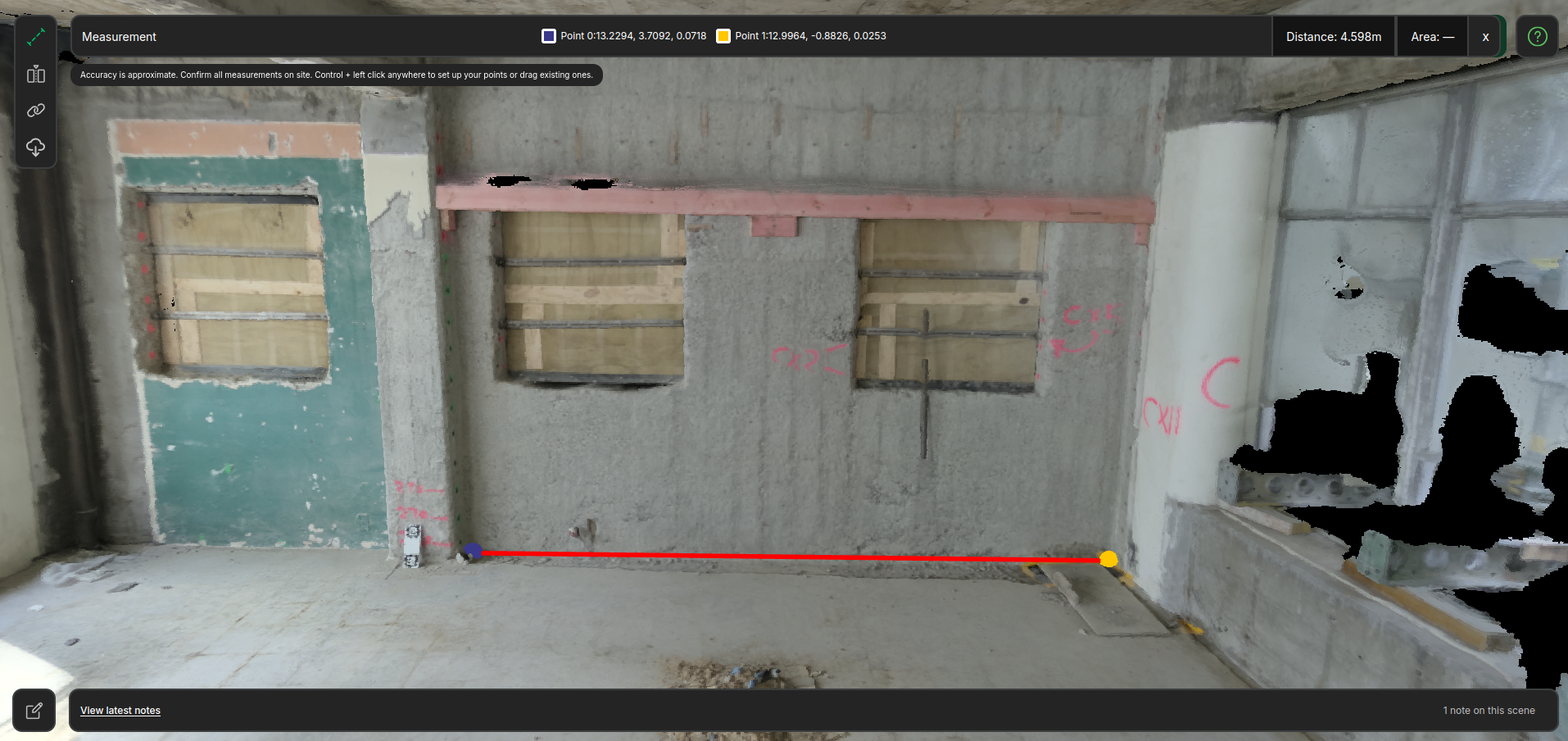
The Sensori Viewer includes tools for distance, area and volume measurement.
Click the measurement button in the viewer to start measuring 
Ctrl+click on the 3D geometry to select a point. Add a second point to define a distance measurement.
With 3 or more points, you can define an area measurement.
Ctrl+click on an existing point to delete it, or ctrl+drag to move it.
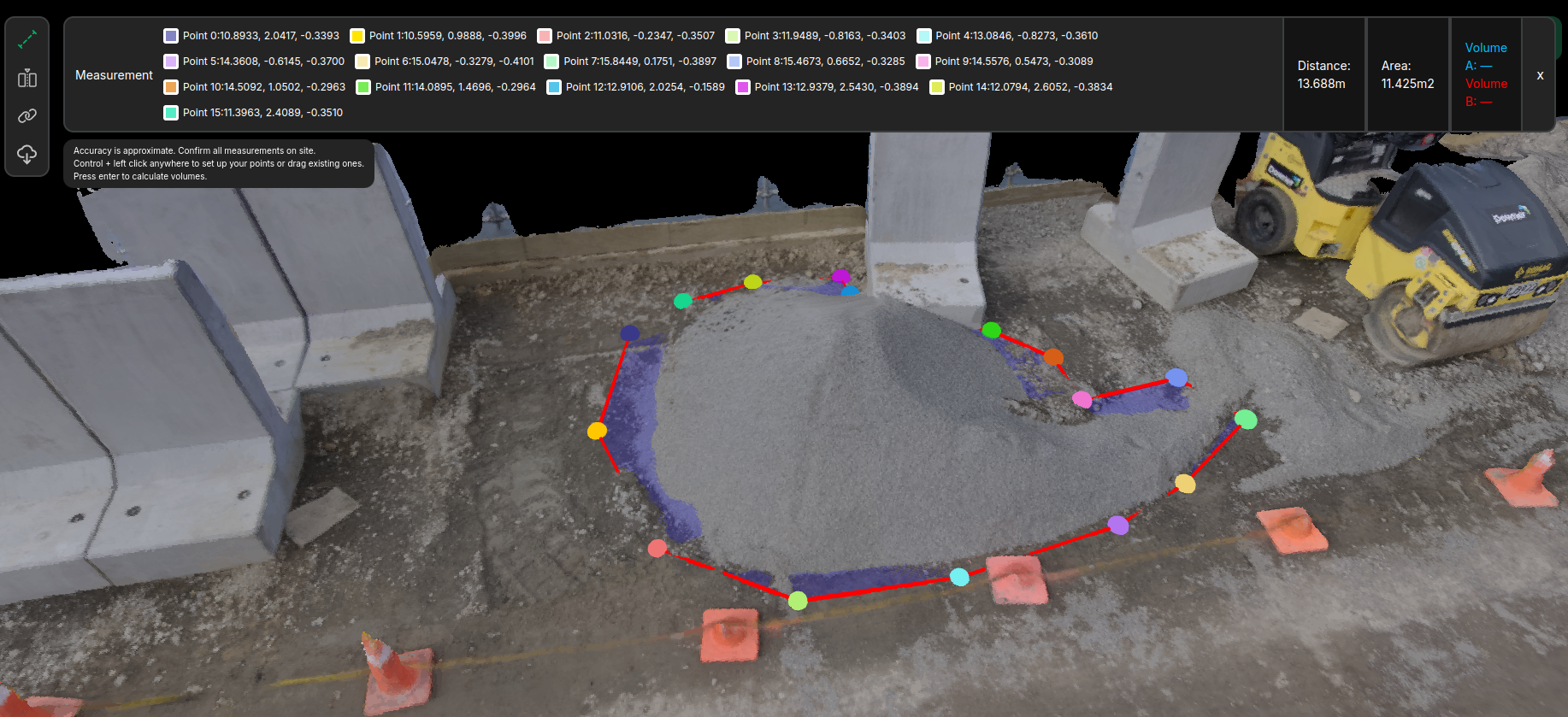
To measure a volume, first click points to define a surface. The volume will be measured between this surface and the nearest 3D geometry.
Press the enter key to calculate the volume. This might take up to half a minute to complete. If there are any holes in the geometry, this can affect the accuracy of the measurement. When the measurement has completed, coloured dots are used to indicate the included volumes on either side of the surface.
The tool can be used to calculate both cut and fill volumes.
# Links and Annotations
### Spatial links
Spatial links to specific locations or images can be generated in the Sensori Viewer.
Navigate to a location of interest on a scan, or jump to an image with shift+click and zoom in on a detail.
Click on the spatial link button 
You can now paste the spatial link into other applications. Clicking on that link will navigate directly to the location on the scan where the link was created. Note that if the project access is set to private then only project members will be able to access the spatial links.
### Notes and annotation
Annotated screen shots can be created and shared within the viewer.
Navigate to a location of interest in the viewer and click the notes button 
Use the coloured annotation tools to markup the image or add a description at the bottom.
Right clicking on the annotated image will allow you to directly download it to use in other tools.
Click the Create button to save your note for other members of the project. All the notes on a scene can be accessed from the notes panel at the bottom of the viewer.
Click on a note to open it.
Clicking on the image will navigate the viewer back to the location where the note was recorded on the 3D model. Clicking the note link button will copy a direct link to the note which can be pasted into external tools.
# Access Control
Projects can be either public access or private access within the Sensori Viewer. Scans within a public access projects can be viewed by anyone who has been given a link to that scan. This can be useful for communication without needing everyone who needs to view the data to create an account with Sensori. For more sensitive projects, the access control can be set to private. This will require all users to login before viewing a scan.
To set project access, you will need to have created the project, or have been assigned a project admin role. Navigate to the project page and click the project settings button at the top right.
From the project settings page, you can set the project to be either public or private visibility. You can also invite new members to the project by email address and assign them to be project administrators with the right to invite other members and change settings, or to be ordinary members.
# Support
For any additional queries please use our [contact form](https://sensori.systems/contact).
### Account Deletion
If you are a user of the Sensori web application or the Sensori Capture mobile application, and would like to request deletion of your account and associated scan data:
1. Navigate to the Sensori [contact form](https://sensori.systems/contact)
2. Enter your contact details
1. Make sure to provide the email associated with the account you would like to delete
3. In the "Message" field, enter "Account Deletion Request"
4. Submit the request using the "Send" button
Personal information other than scan data is held in accordance with our [privacy policy](https://sensori.systems/privacy).